Thursday, January 30, 2014

11 Free PSDs to Spice Up Your Design Library

Since web designer don’t have time to create everything themselves, it’s very important to discover new files that can be used in design projects. That’s why we search the web to find new and useful stuff that you can download for free. Today we have several different free PSDs here for you, from iPhone mockups to UIs and more. We’re certain you’ll find a use for them in one of your upcoming projects.

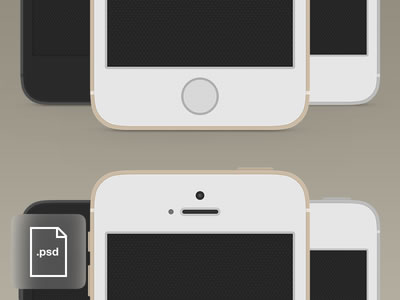
iPhone 5S Mockup

Free PSDs to Spice up your Library

19 Blurred Backgrounds

Free PSDs to Spice up your Library

iPhone 5C Mockup

Free PSDs to Spice up your Library

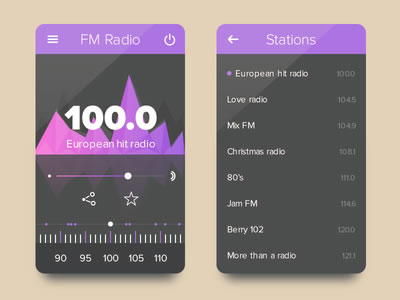
Radio UI (Freebie – .PSD)

Free PSDs to Spice up your Library

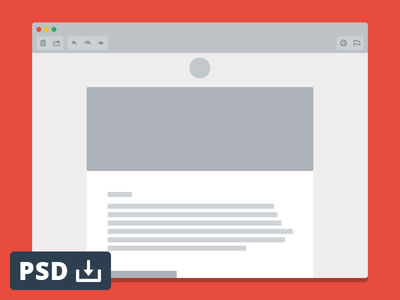
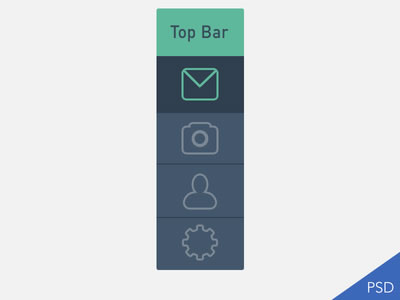
Email Window Mockup

Free PSDs to Spice up your Library

mbp retina – freebie

Free PSDs to Spice up your Library

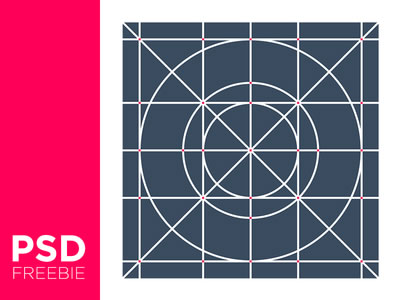
iOS7-ICON GUIDE

Free PSDs to Spice up your Library

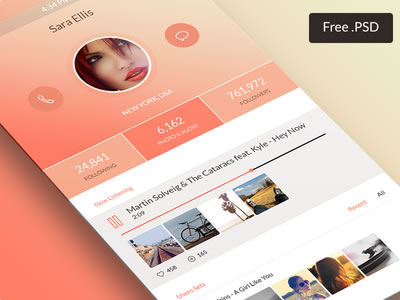
Freebie – user profile for App

Free PSDs to Spice up your Library

Flat UI

Free PSDs to Spice up your Library

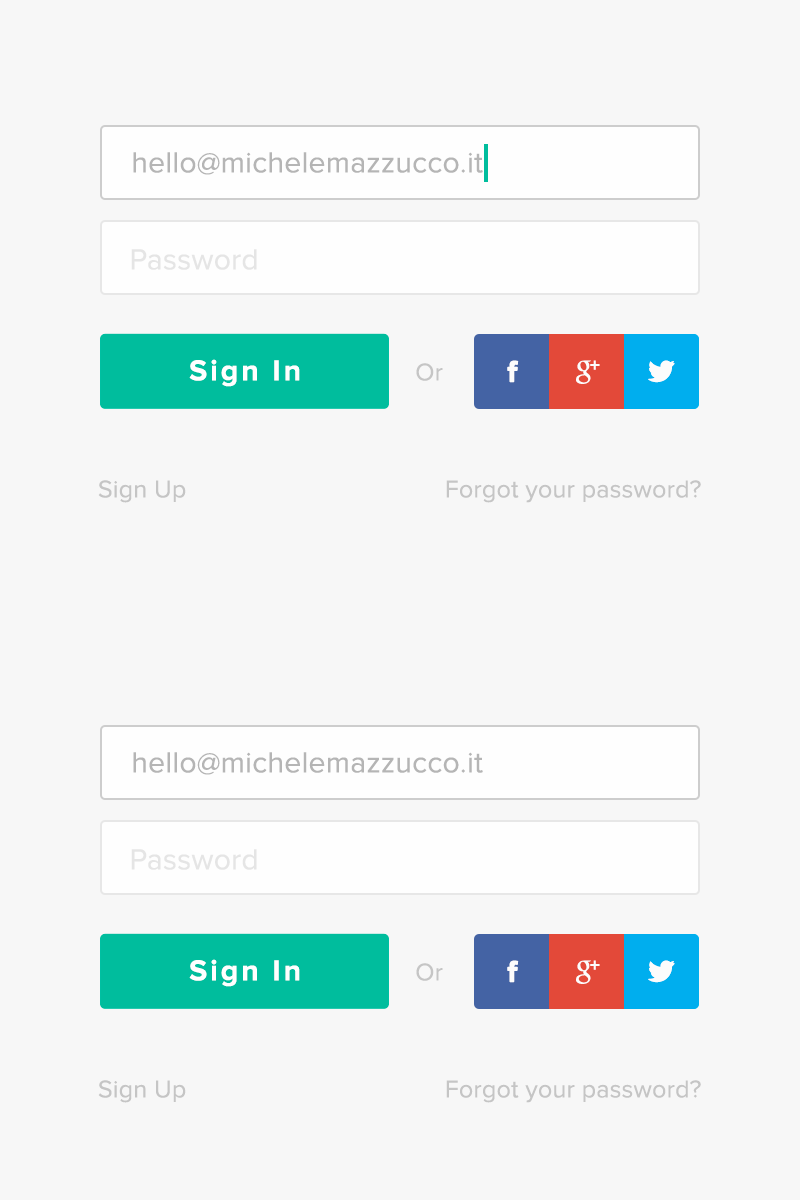
Sign In [PSD]

Free PSDs to Spice up your Library

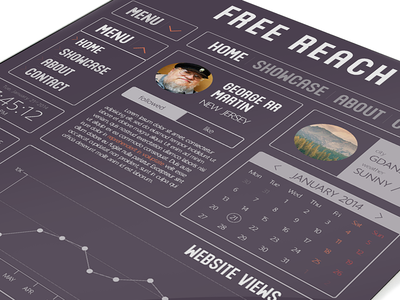
Free reach ui kit

Free PSDs to Spice up your Library

Effective Document Management System in your Company

Document Managament System Saudi Arabia, KSA
Here at Gloria we spend a lot of our time thinking how we can help companies improve and grow. Often this involves the design and implementation of Intranet and collaboration systems. One of the big features of these types of systems is often document management. Indeed we have lost count of the amount of workshops we have sat in discussing how we can improve a company’s document management processes. Lucky we are so passionate about it.
It is easy to understand why so much of our time is dedicated to this area. A good Document Management Syste​m can free a company from the shackles of the dreaded file share. It can give employees the freedom to create and share work, the security to know everything is protected and audited, and the ability to think and work in innovative ways. Good document management removes barriers, allowing companies to get on doing what they do best.
But good document management is actually very difficult to achieve. Sure, putting in a new SharePoint system doesn’t sound that hard on paper, but fine tuning such a system can be challenging. Getting employees to consistently use such a system can also be tough. End to end, moving a company from ‘My documents’ and network drives to a new way of working is actually a significant piece of work.
Over the years we have had a good number of successes in this area and we actually count ourselves asSharePoint document management experts. So we thought we would share with you our top five tips for effective document management.

1. SHAREPOINT

This might seem like an obvious one, but selecting SharePoint as your document management system of choice is the first step to success. Since its early incarnations SharePoint has placed document management at the very core of what it does. The very latest version builds on this with a number of very useful features:
  • Drag and drop: Users can now simply drag files to upload them to libraries. This is a simple and elegant user interface development that puts SharePoint on par with the latest web techniques
  • Live document previews: SharePoint 2010 supported previews when used in conjunction with Microsoft FAST search add-on. In 2013 this feature is much improved and available as a core feature.
  • Simple sharing: It is now easy to see who an individual document is shared with, and add additional external users.

2. UNDERSTAND YOUR CURRENT PROCESSES

Our consultants, in all of our projects, put a huge emphasis on the requirements gathering phase.​ In document management projects we spend a lot of time understanding how documents are currently created, used, and managed. How do people share documents, what are the processes that have been developed, what are the workflows people use? Most companies have surprisingly complex, if often manual, procedures in place for their documents. We work hard to understand the nature of this problem space.

3. CONTENT CLASSIFICATION

Once there is a clear picture of how documents are currently used and managed, we advise our customer to try to classify their documents and the relationships between them. Before even thinking about implementing a new system it really helps to have a clear idea of how documents should be organised. This can be done on paper, or in a hands on session on a big whiteboard. We run many sessions like this. Think about documents in terms of:
  • Are they mainly grouped by project, by client, by date?
  • Who has permissions on what content and why?
  • How are related documents referenced, if at all?
Taking the time to complete this often complex and time consuming task really helps later on when it comes to migrating content. Remember a new document management system will likely be in service for years, if not tens of years, so it is worth putting the man hours in at the beginning to get things organised.

4. METADATA

SharePoint offers really powerful metadata features. Documents can have all kinds of data and properties assigned to them:
  • Long form descriptions, using rich text
  • Reference numbers or IDs, often auto generated
  • Data from dropdowns, including multiple choices and values pulled from other sources
Ensuring documents have the appropriate metadata applied has a number of benefits. It makes finding documents much simpler (either via search or navigation). It also makes identifying a document, without opening it, much more straight-forward. Good metadata can also go a long way to applying record management and retention policies, should your files require it.
Useful as it is, don’t bite off more than you can chew with metadata. Each file doesn’t need ten separate properties, and likely users simply won’t fill in this many fields anyway. Balance the need for description with practical thought around usability.

5. THINK ABOUT USER ADOPTION

User adoption, or change management, is a vital ingredient to think about when getting a system like this right. It simply won’t work if you just launch a new way of storing documents, and don’t really educate anyone about what has changed or why. You need to think about some of the following areas:
  • Training: Do users need training on the new system? Do they need classroom sessions, or simply a visual guide to a new interface? Downtime might cost money, so training can be a worthy investment.
  • Communication: You need to let users know a new system is coming. Send out emails, put up posters in communal areas, and advertise the benefits early and often. Give people practical dates if they need to complete certain activities in time. When a system goes live, setup advisors in a side room or employ ‘floor walkers’ for a few days to physically go and speak to people.
  • Phase deployment: Depending on the size of the project you might want to phase roll out. Test the new system with a small team or department, rollout only part of the features, or run new and existing systems side by side for a while. Another good tip is to keep file shares where they are, but make them read only. This way no one panics they have lost files, and are more gently introduced to the brave new world.
Gloria Solution consultants are specialists in document management systems and they can help you implement all or some of this strategy in order to increase your company’s efficiency. Why not talk to our team today to find out mo​re.​

Saturday, January 18, 2014

Create a Stylish Contact Form with HTML5 & CSS3

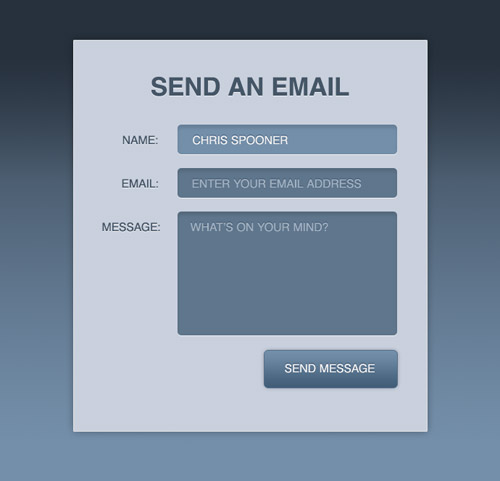
Follow this step by step process to create your own stylish contact form completely out of HTML5 and CSS3. We’ll be using a couple of the handy new features in HTML5 to add cool functionality to our form, while making use of cool CSS3 properties to recreate our Photoshop concept purely in code.

View the HTML and CSS form demo
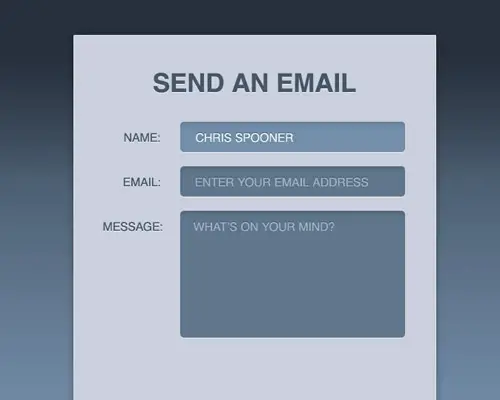
The design we’ll be building features all the things that make a rich interface; gradients, highlights and shadows! We’ll create a visual concept in Photoshop first of all, but when it comes to building the form we’ll recreate every effect with HTML5 and CSS3.

The PSD Concept


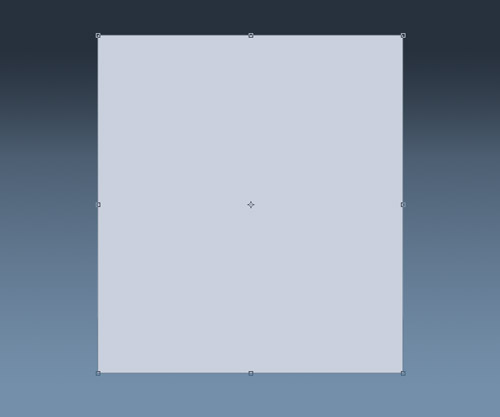
Open up Photoshop and create a new document. Add a dark to light blue gradient to the background, then draw a rectangle in the centre to contain the form.

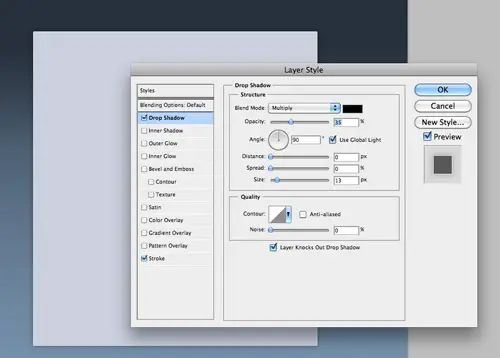
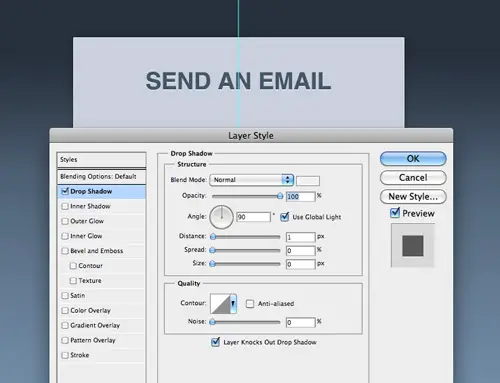
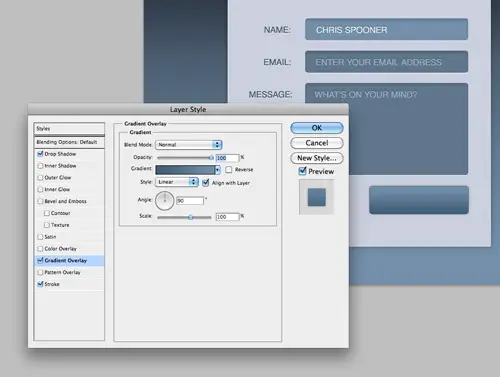
Use Photoshop layer styles to add a subtle drop shadow at around 30% opacity and a thin 1px stroke using a very light grey.

Add a title to the design using the darker blue colour swatch. Spruce up this text with a inset effect by tweaking the Drop Shadow settings to create a 1px light grey outline along the bottom edge of the text.

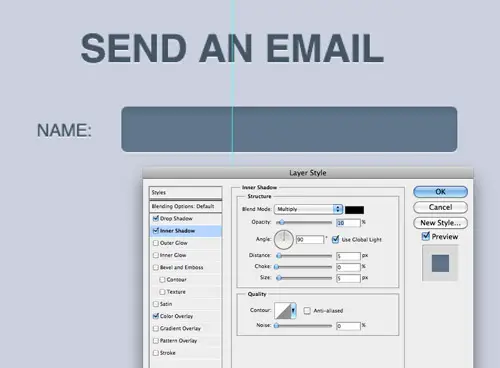
Use the same font styling on each of the labels, then draw a rounded rectangle with 5px corner radius to create an input field. Add a soft Inner Shadow to add depth to the design.

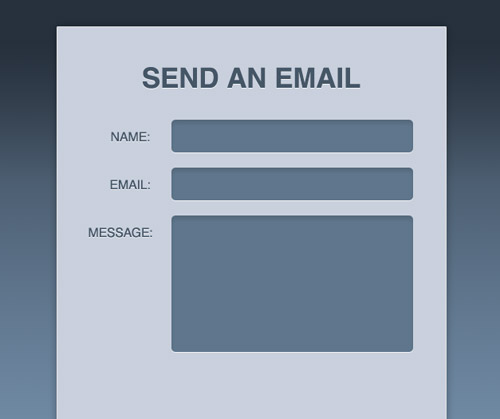
Copy the elements to lay out the form with a series of input fields, then a slightly larger text area.

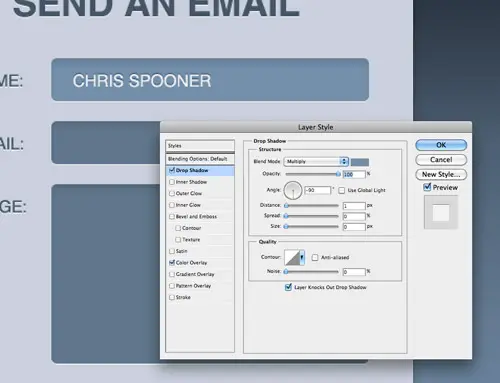
Modify one of the input fields to visualise how the field would look when in use. Give it a lighter blue colour overlay and style up the text with an inset shadow. Use the Drop Shadow feature so the shadow appears on the outside of the text (not the inside as Inner Shadow does). Remember to uncheck the Use Global Light option so the -90 degree angle doesn’t also affect all the other gradients.

Add lines of text inside the other fields to represent the placeholders, but give them a darker blue fill to lower their contrast against the input fields.

Draw a smaller button shape with the rounded rectangle tool and style it up with a gradient, thin 1px stroke and a subtle shadow.

The visual concept is now complete. We won’t be using any of the graphics as background images, but the PSD will be handy to refer back to for Hex colour codes when recreating the design in CSS.

The HTML5 Structure

View the HTML code
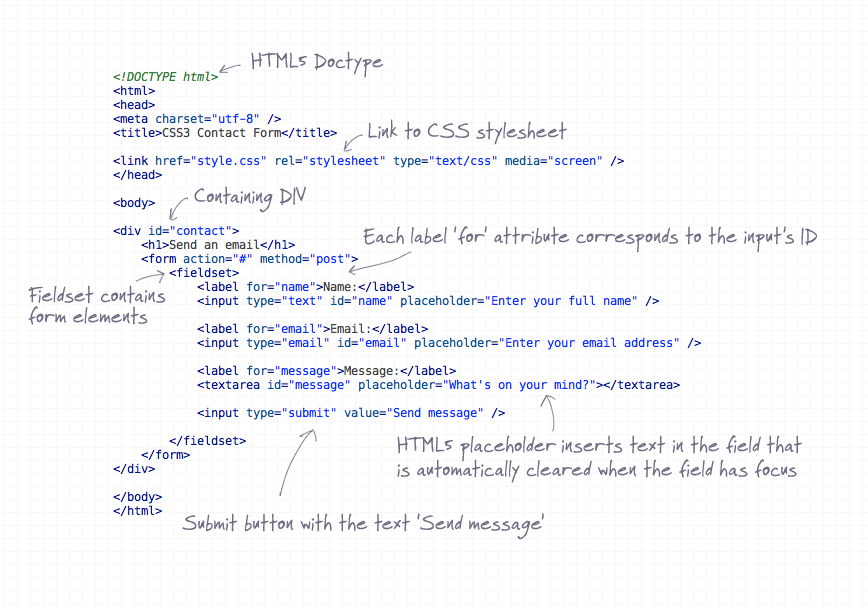
Every web project starts with the HTML structure. Here we’ll be using some fancy HTML5 features to spice up the design. Lay out a basic document structure with Doctype and CSS stylesheet link. House the contact form inside a contaning div so we can centre it up in the demo. Each label element should have a for attribute that relates to an ID of each input field – This boosts the accessibility of the form and allows the user to click the label to activate the correct field.
One new HTML5 feature we’re making use of is the placeholder attribute. Simply enter your desired message and it will appear in each field, when the user has focus on that field the text is automatically cleared. This feature is currently only supported in Safari and Chrome, but is soon to appear in Firefox4.

The CSS Styling

View the HTML code
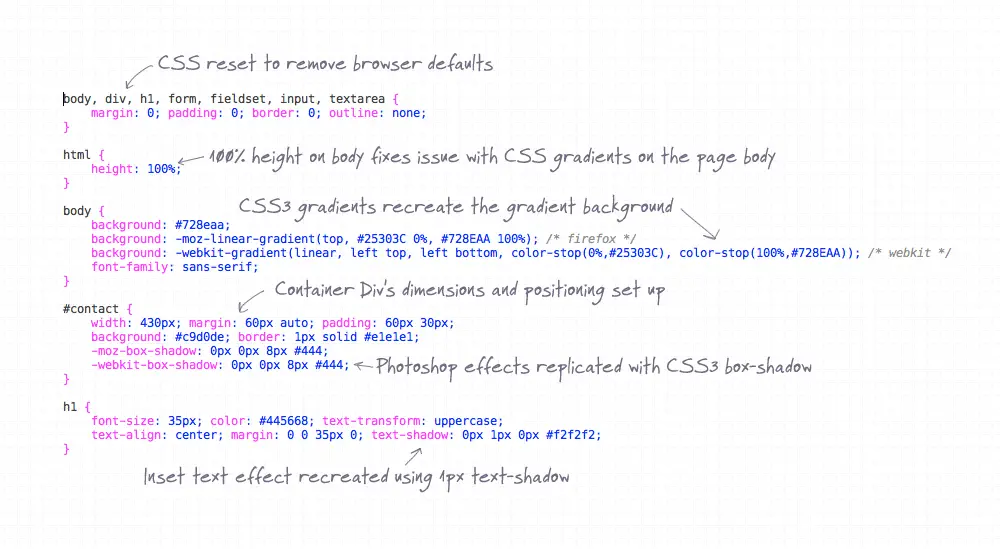
The CSS stylesheet first sets up the basic document with a reset to remove any browser defaults, then the body is given the blue gradient using CSS3. Currently different code is required for Webkit and Mozilla, but the handy CSS3 Gradient Generator website helps save time.
The containing div is given specific dimensions and centred up using margin: 0 auto;, then the shadow and stroke from Photoshop is replicated using box-shadow and a border.
Basic CSS font styling matches up the text to the concept, then the CSS3 text-shadow property replicates the inset text effect by adding a 1px highlight to the bottom edge.
View the HTML code
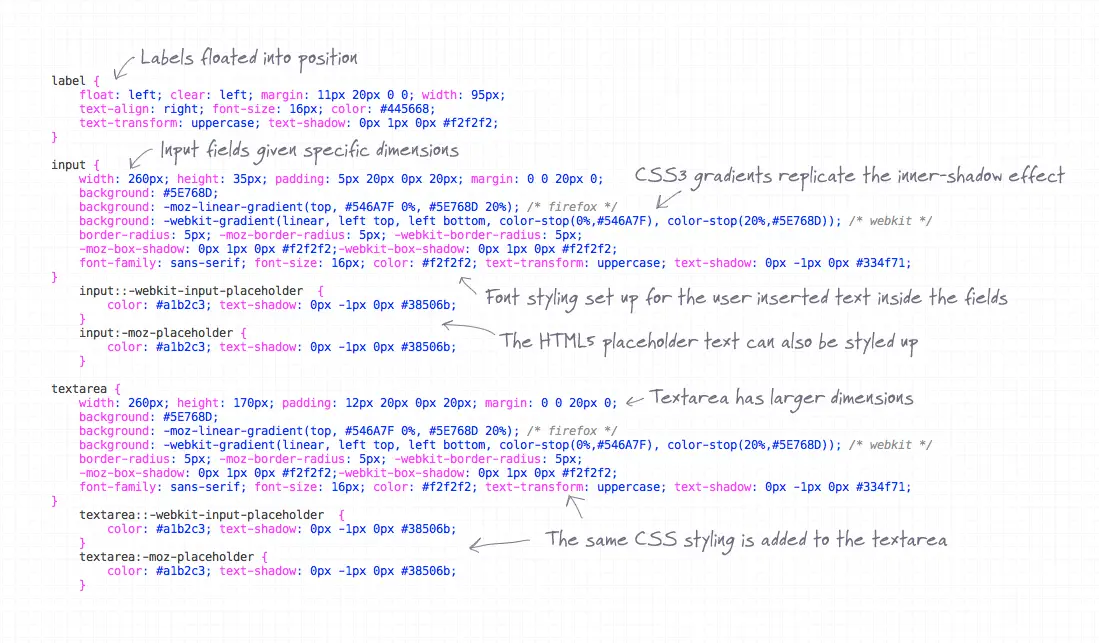
Continuing on, the label elements are given similar styling to the h1, then the input elements are styled up with dimensions and padding to match the Photoshop concept. CSS3 gradients come into play once again to recreate the inner shadow effect, simply adjusting the location of the gradient handles can create the impression of subtle shading.
The HTML5 placeholders can also be targeted using vendor specific CSS for both Webkit and Mozilla. The colours for these placeholders are colour picked from the PSD concept.
The CSS used on the input elements can be copied directly onto the textarea, the only difference being the larger height dimensions.
View the HTML code
To give the user visual feedback when the input elements are active, the :focus pseudo selector can be used to give the fields different CSS styling. Here the CSS3 gradients are adjusted using lighter blue colours.
The submit button will currently be styled with the generic CSS used on the input fields, so to target this field in particular the [type=submit] advanced selector is used to attach unique styling to this element in particular. Such styling includes a different width and height, a new gradient background, a subtle box-shadow and a thin 1px border. cursor: pointer; is then added to make the button seem clickable by displaying the ‘pointer’ style of cursor when the element is hovered.

The Complete Code

HTML

<!DOCTYPE html>
<html>
<head>
<meta charset="utf-8" />
<title>CSS3 Contact Form</title>

<link href="style.css" rel="stylesheet" type="text/css" media="screen" />
</head>

<body>

<div id="contact">
 <h1>Send an email</h1>
 <form action="#" method="post">
  <fieldset>
   <label for="name">Name:</label>
   <input type="text" id="name" placeholder="Enter your full name" />
   
   <label for="email">Email:</label>
   <input type="email" id="email" placeholder="Enter your email address" />
   
   <label for="message">Message:</label>
   <textarea id="message" placeholder="What's on your mind?"></textarea>
   
   <input type="submit" value="Send message" />
   
  </fieldset>
 </form>
</div>

</body>
</html>

CSS

body, div, h1, form, fieldset, input, textarea {
 margin: 0; padding: 0; border: 0; outline: none;
}

html {
 height: 100%;
}

body {
 background: #728eaa;
 background: -moz-linear-gradient(top, #25303C 0%, #728EAA 100%); /* firefox */ 
 background: -webkit-gradient(linear, left top, left bottom, color-stop(0%,#25303C), color-stop(100%,#728EAA)); /* webkit */
 font-family: sans-serif; 
}

#contact {
 width: 430px; margin: 60px auto; padding: 60px 30px;
 background: #c9d0de; border: 1px solid #e1e1e1;
 -moz-box-shadow: 0px 0px 8px #444;
 -webkit-box-shadow: 0px 0px 8px #444;
}

h1 {
 font-size: 35px; color: #445668; text-transform: uppercase;
 text-align: center; margin: 0 0 35px 0; text-shadow: 0px 1px 0px #f2f2f2;
}

label {
 float: left; clear: left; margin: 11px 20px 0 0; width: 95px;
 text-align: right; font-size: 16px; color: #445668; 
 text-transform: uppercase; text-shadow: 0px 1px 0px #f2f2f2;
}

input {
 width: 260px; height: 35px; padding: 5px 20px 0px 20px; margin: 0 0 20px 0; 
 background: #5E768D;
 background: -moz-linear-gradient(top, #546A7F 0%, #5E768D 20%); /* firefox */
 background: -webkit-gradient(linear, left top, left bottom, color-stop(0%,#546A7F), color-stop(20%,#5E768D)); /* webkit */
 border-radius: 5px; -moz-border-radius: 5px; -webkit-border-radius: 5px;
 -moz-box-shadow: 0px 1px 0px #f2f2f2;-webkit-box-shadow: 0px 1px 0px #f2f2f2;
 font-family: sans-serif; font-size: 16px; color: #f2f2f2; text-transform: uppercase; text-shadow: 0px -1px 0px #334f71; 
}
 input::-webkit-input-placeholder  {
     color: #a1b2c3; text-shadow: 0px -1px 0px #38506b;  
 }
 input:-moz-placeholder {
     color: #a1b2c3; text-shadow: 0px -1px 0px #38506b; 
 }

textarea {
 width: 260px; height: 170px; padding: 12px 20px 0px 20px; margin: 0 0 20px 0; 
 background: #5E768D;
 background: -moz-linear-gradient(top, #546A7F 0%, #5E768D 20%); /* firefox */
 background: -webkit-gradient(linear, left top, left bottom, color-stop(0%,#546A7F), color-stop(20%,#5E768D)); /* webkit */
 border-radius: 5px; -moz-border-radius: 5px; -webkit-border-radius: 5px;
 -moz-box-shadow: 0px 1px 0px #f2f2f2;-webkit-box-shadow: 0px 1px 0px #f2f2f2;
 font-family: sans-serif; font-size: 16px; color: #f2f2f2; text-transform: uppercase; text-shadow: 0px -1px 0px #334f71; 
}
 textarea::-webkit-input-placeholder  {
     color: #a1b2c3; text-shadow: 0px -1px 0px #38506b;  
 }
 textarea:-moz-placeholder {
     color: #a1b2c3; text-shadow: 0px -1px 0px #38506b; 
 }
 
input:focus, textarea:focus {
 background: #728eaa;
 background: -moz-linear-gradient(top, #668099 0%, #728eaa 20%); /* firefox */
 background: -webkit-gradient(linear, left top, left bottom, color-stop(0%,#668099), color-stop(20%,#728eaa)); /* webkit */
}

input[type=submit] {
 width: 185px; height: 52px; float: right; padding: 10px 15px; margin: 0 15px 0 0;
 -moz-box-shadow: 0px 0px 5px #999;-webkit-box-shadow: 0px 0px 5px #999;
 border: 1px solid #556f8c;
 background: -moz-linear-gradient(top, #718DA9 0%, #415D79 100%); /* firefox */
 background: -webkit-gradient(linear, left top, left bottom, color-stop(0%,#718DA9), color-stop(100%,#415D79)); /* webkit */
 cursor: pointer;
}

The Final HTML5/CSS3 Form

View the HTML and CSS form demo
Preview the final web page in your browser to see the form completely rendered in HTML and CSS. Browsers such as Safari and Chrome will see every detail, whereas Firefox won’t see the placeholders until the release of Firefox 4. The styling will slowly degrade as we go through Internet Explorer until we see a basic and flat form, but the overall functionality is still usable and accessible.

Web Design Company Saudi Arabia

Source : http://line25.com

Top Design Tips for Improving Ecommerce Conversions

For three years now I have successfully avoided the Black Friday madness by shopping online on Cyber Monday instead of in stores. It seems that I’m not the only one either. This year many stores, such as Toys R Us, offered Black Friday deals online as well as in store fronts. This allowed me to get the best possible deals since different discounts were available for different items for each of the two events. Because of shopping online, I could easily jump from one online store to the next to compare availability and prices. The result? I bought way too many gifts for my kids this year simply because of the amazing deals available from multiple stores, all from the convenience – and safety – of my own home.

The second result? I’ve also started purchasing produce online from a local farmers’ coop, which delivers organic fruits and veggies right to my door. Before, I had to brave our overcrowded Walmart or poorly located local organic store up to once a week for fresh produce. Face products, vitamins, and other healthy food items I also purchase online due to the variety available and the fact that some of these stores offer an automatic monthly purchase option. So I don’t even have to think about re-ordering. And I keep wondering why I didn’t do more online shopping before. Was I just loath to jump onto the digital shopping bandwagon? Or was it because ecommerce wasn’t that great just until this year?
If you guessed the second reason, you guessed correctly. (Only a tiny bit of the first reason is a factor due to a weird combination of my love for new technology but also my fascination with the “olden days”.) Most online purchases I’d made in the past were a failure. Sometimes the product that arrived didn’t look at all like the images online. Sometimes it simply took way too long for it to arrive. And then most of the time, I left the website before purchasing either because the product information was lacking or the checkout was just way too complicated and time-consuming. And I almost never made a purchase from a small company online due to a fear of scams.

Web design has come a long way in improving ecommerce conversions, especially in the last year or so. Designers have found that specific design elements need to be included in an ecommerce page to gain the trust of a customer. All of my issues for making online purchases in the past, of course, first start with the actual company policies. But a web designer now has the responsibility of making sure these policies are front and center for consumers to see – and I’d go so far to say that designers also should suggest their clients adopt certain policies if these are not present. After all, it’s your job as a web designer to build a successful ecommerce website for your clients.
Make sure you as a web designer, or even an online retail business owner, knows just what an ecommerce website needs to improve conversions. The following list includes the top design elements (and, consequently, value offerings) that every ecommerce site should have to help consumers like me not only know exactly what they are getting with an online purchase but also feel safe making a digital purchase. For more inspiring ecommerce design examples, check out these 50 ecommerce websites.

Clean Design

A clean design is important for any website, but especially an ecommerce one. What exactly does a clean design mean for ecommerce? For one, it has to focus on the products. A visitor should be able to immediately tell what your client sells when visiting the site, so large product images on the home page is essential.
01-design-tips-ecommerce-brigitte
The Brigitte Bardot website is not only nicely organized and easy to navigate but it also looks uncluttered with a single, large image and simply tagline above the fold on the home page, creating a clean first impression.

Home Page Promotionals

The home page is also the place to advertise any current promotionals of the company, whether it’s a discount on certain items, free shipping, or storewide savings. And, of course, illustrate with product images and short, snappy descriptions.

Immediately on the home page of the Forever 21 website, visitors see the current sale details. The following images in the slideshow suggest other hot items.

Effective Navigation Menu

The navigation menu needs to always remain visible so that clients can jump from page to page quickly and easily. Be sure to keep the navigation menu simple using drop-down categories to help better organize clients with lots of products. A Search bar is usually helpful as well if your client has a huge list of products. And include a FAQ or Help tab in the menu so that customers can search for answers to popularly asked questions on the site.

For such a huge inventory of products, Toys R Us has an incredibly organized website. Their main navigation at the top of the home page includes drop down sub-items, and the product menu on the left side of the page allows customers to shop by different categories.

Recommendations/ Featured Items

Featured products on the home page are an excellent way to give customers an idea of what type of product you sell. If your promotional ad takes up the entire space above the fold, place popular items just below the fold for customers to see when they scroll down.

Amazon.com suggests items based on previous products individuals have viewed and places this list both on the home page and at the bottom of product pages. In addition, Amazon also includes a list of items others have viewed on each product page.

HM.com includes a list of items both similar to a product as well as upsell items, such as accessories or shirts that go well with a pair of jeans.

Visible Testimonials

An actual page for testimonials is becoming a bit outdated. Instead, designers are incorporating testimonials right on the home page and/or product pages. Or, if a separate testimonials page is included, make sure to show previews of testimonials on the home page. Keep in mind that these are company reviews, not product reviews – two very different things. Testimonials should be about the satisfaction of the customer working with the company.

Bold King places a scrollable testimonials section near the bottom of their single page website, along with images of the customer who left testimonials.
A company review/ testimonial placed in a side bar or just below featured items gives consumers confidence in the business. If your client allows the option of customers leaving a review through a social media profile, such as Facebook or Google+, then you can also include the reviewer’s profile image, making the review much more believable.

Each product on the Born website allows for customers to leave a comment or review via Facebook, which encourages customer interaction.

Large Product Images

Every product will need several photo sizes for different pages. Make sure that images are large enough that the product is easily discernable, good resolution, but also are optimized for fast web page loading. Usually this means keeping images at less than 70kb, and really for the web you don’t need a higher resolution than this. Make sure your client has at least two angles for each product that you can place as thumbnails on the product page for consumers to view at a larger size if desired.

Another excellent feature for products on the Born website is that each come with multiple viewing angles and even videos. In fact, videos are becoming an excellent method for showing off products. Many companies are placing TV ads of products, videos of how the product was made, or even examples of how to use the product.

On the Budnitz website, visitors can view a film that was created using at Budnitz bicycle. You may notice that the video is embedded from Vimeo to save bandwidth on the website.

Organized Product Information

Some of your clients may only have one category of products, while others may have several categories. No matter how many different products a client has, though, always have a page/ pages that displays all products within a single category along with individual pages for each product. This way, you can more cleanly fit a product description, specs, the availability of the product, product reviews, price, customization options (such as size or color), recommended items to purchase along with this product, etc.

On Target.com, items are placed within categories, sub-categories, and even sub-sub-categories. This hierarchy of categories allows the website to stay clean and easy to browse through items quickly.
Another excellent way to help customers preview items more quickly is with a quick view option. When customers are browsing through a list of items on a category page, they can click on the preview/ quick view button and a window appears with all of the product thumbnails (which can be clicked on for a larger view), short product description, customization options, price, and purchase button.

Some websites, like Abercrombie, show a Quick View button when the pointer hovers over an item. Clicking on this button makes a Quick View window pop open that customers can quickly close down to continue searching. Others simply provide a Quick View button next to the Add to Cart button below each product in a list.

Clear Product Price and Shipping Costs

Nothing is more frustrating to consumers than to have to wait until the product page or (god forbid!) the checkout page to know how much an item will cost them. Be sure to place the price of the product everywhere you show the product (home page, category page, product page, etc). If your client offers fixed shipping costs for every product, then place this at the very least on the product page and quick view. If shipping costs are configured at checkout, then place a shipping cost button on the product page that opens a window or leads to the FAQ page and an explanation of how shipping costs are determined.

Nike shows their Free Shipping offer in the sub-header seen on every page. Their prices are listed next to thumbnail images and immediately under the title on every product page.
Another price affectant to display is a reward or points system. If this is something your client offers to customers to encourage loyalty, then display this information on the product page or in the header. For instance, when a customer logs in, next to their name that appears in the header, show how many reward points they have gained so far. You can also show the points on product pages.

Improved Call-to-Action/ Add-to-Cart Button

Depending on what products the website sells, you will need a call to action or add to cart button. Some web designers make the mistake of creating a fancy button that blends in with the color scheme or style of the website. DO NOT DO THIS. Yes, I am shouting at you – that’s just how important it is for add to cart or purchase button to stand out.

Notice that on this product overview on the ToysParadise website, the Add to Cart button has a dark green color and a unique font. It’s also larger than any other button on the page. Now, you can keep the button in the same style but use a high contrast color, just as long as it stands out from the rest of the page.
Beside the product image, the call to action button should be the first graphic the customer spots on the page. So this also means placing it in the best location possible – on the right side of the page, opposite the image located on the left of the page. The only exception for this is during the checkout section. A purchase button should be placed at the very end of the checkout form.

Another consideration with the call to action button is the wording. Don’t get creative, unless the words on the button still tell the customer exactly what you want them to do. Most of the time, a simple “Add to Cart” is the best phrase to use.

Minimal Checkout Page

Studies show that 67% of customers leave during the checkout process. Why? Sometimes it is because the price and shipping costs weren’t displayed before the customer started checking out. Sometimes consumers leave because there is no option to check out as a guest. Other times, it is because the checkout page requires too many steps or even because it contains too many distractions. All of these problems are very easy to avoid.

Walmart.com gets the first step right with the option to checkout as a guest. The rest of their checkout process is easy and quick as well. For most of your clients, their checkout will have at least two and usually three or four steps. Just like Walmart, make sure you place a progress line at the top of each step.
The first page of the checkout procedure should be a login/ create new account option, but encourage your client to allow purchases to be made as a guest. If the customer is a guest, you will need a shipping and billing address, phone number, etc. Make it easy with a checkbox for “billing address same as shipping address”. Then you will need a billing information page. Again, have the billing address filled out for them already. Finally, you’ll need a review page that contains the Purchase button. Notice how on Walmart, the Continue button is the only large orange button on the page:

In every step, avoid adding in distractions, such as links to anything else not related to this purchase. Another bonus for customers is to have the estimated cost of the purchase on every page. If you do this, just make sure you include a fine print phrase below the Next button that explains that hitting Next does not confirm the purchase.

Unique Design Elements


This is where you as a web designer can show off your awesome design talents. Some would argue that creating a unique ecommerce design is just as important as the layout and placement of elements. Make sure to do your research, of course, and know the audience as well as the company image. And never allow a creative design ruin the ability of a customer to easily navigate or see products.

One page you can get really creative with is the About page. Encourage your client to create some professional videos that explain the company. Include their story in a voice unique to the company. Pictures of employees at work are also a great way for your client to gain the trust of new customers.

The Southtree about page is titled “Our Story” and is a recount of their foundation, mission, and values in a story format.

Value Elements in the Header

Make sure the header includes what can be called “value elements”. These are anything that adds value to a consumer’s purchase. Your client may offer free shipping with a certain purchase amount. Or they may have a stellar return policy. Anything that would be considered a perk and increases the value of the company, you should definitely include in the header.

At the very top of every page on the Skinny Ties website is an orange header bar that lists their current special offers. However, some ecommerce sites have too much going on in the header already and can’t afford extra space in the header such as Skinny Ties. When this is the case, placing these value elements somewhere above the fold line on the home page may work best, such as what Jenier does with value elements directly below the home page image.

The idea is to simply make sure that new customers immediately know the benefits of shopping with this company. Don’t forget to repeat these perks in an easy-to-see location on product pages as well.

Trust Factors in Header and Footer

Both the header and the footer should include the company phone number (if available) so that customers can call if they need help or have questions – and be sure to also list business hours next to the phone number. Live chat should also be placed in the header, if offered. Social media buttons in the header, such as what Inkefx lists, help to show a company’s legitimacy and also give customers some quick places to check for legitimate customer reviews.

In the footer, be sure to also include your client’s seals of legitimacy, such as BBB, TRUSTe, and VeriSign. Other great footer elements are logos of brands the company sells, logos of large organizations who purchase from the website, and credit cards the company accepts.

The Nutty Scoop includes all of these trust factors plus other media on which they’ve been mentioned in the bottom of their home page.

Final Considerations

Of course, the list above is not complete. As with any client, make sure to include vital SEO elements on every page. Keep in mind too that not every client will need all of the suggestions above, since every company is different. Use this list as a guideline, however, and hopefully you will gain the reputation of a web designer who knows what it takes to create an ecommerce website with record conversions.

Source : http://vandelaydesign.com